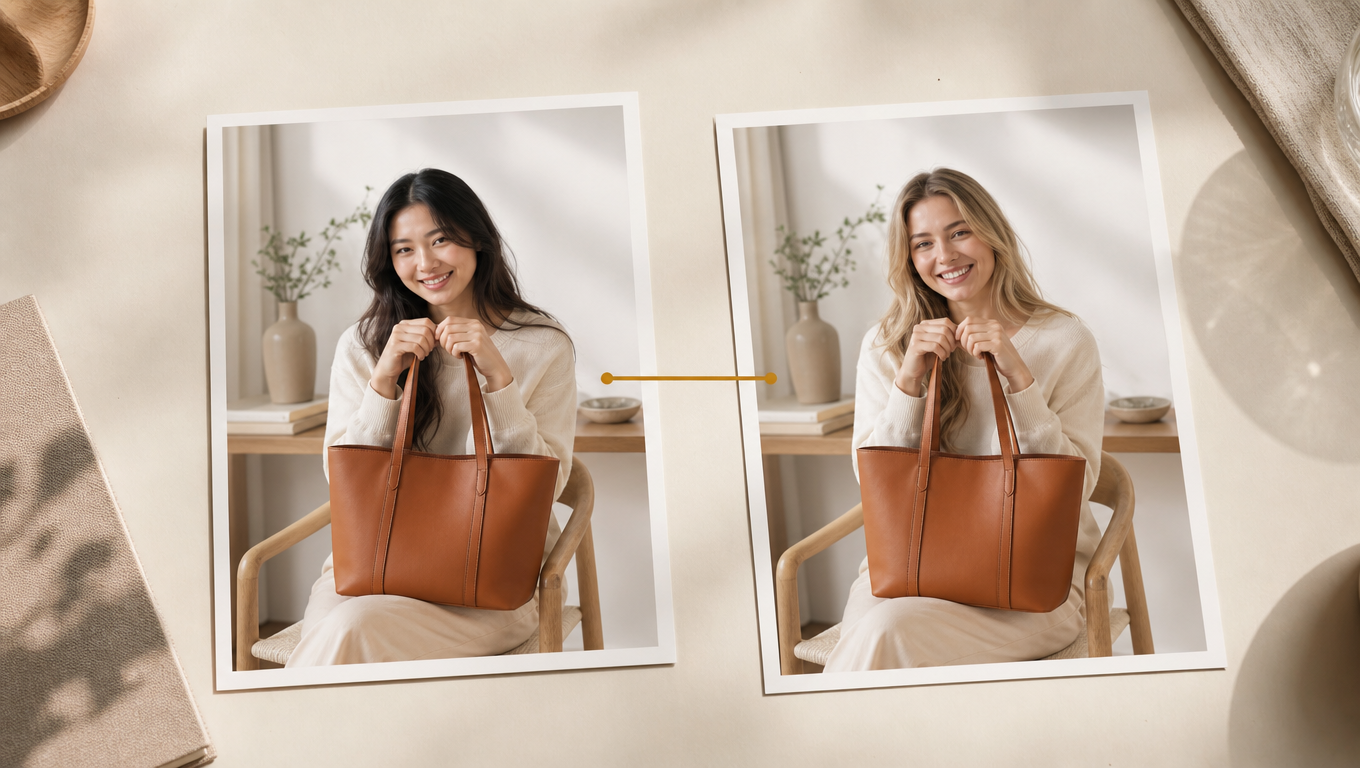

Need to change the model in a product shot, localize a campaign image for another market, or test a different person inside the same ad layout? That job is called AI image character swap — replacing a person, model, or character in a photo while keeping the original scene, pose, lighting, and composition.
This guide shows how to replace a person in a photo online, how character swap differs from face swap, and how to prepare images so the result looks natural instead of pasted in.
What Is AI Image Character Swap?
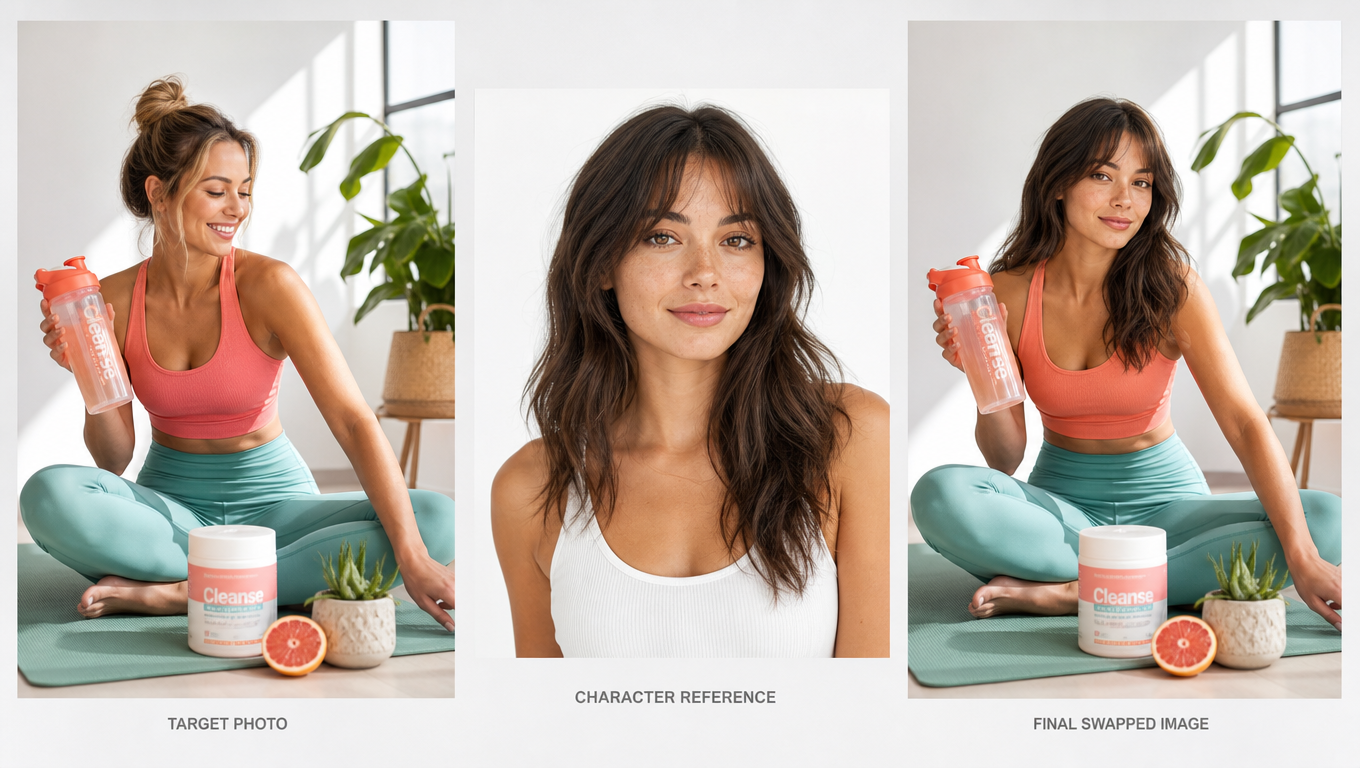
AI image character swap is a photo editing workflow that:
- Starts from an existing target image (the scene you want to keep)
- Uses a character reference image (the person or character you want to insert)
- Generates a new photo where the replacement subject fits the original pose, framing, background, and lighting
It is not the same as generating a brand-new picture from a text prompt alone. Character swap is built for edits inside an image you already have.
Character Swap vs Face Swap
People often search for face swap when they actually need a full-person replacement. The difference matters.
|
Goal |
Use this |
|
Change only facial features |
Face swap |
|
Replace the whole person / model / character |
Character swap |
|
Keep body, outfit, and pose almost unchanged |
Face swap |
|
Change identity while preserving scene + pose structure |
Character swap |
Face swap changes the face in Topview AI Canvas. Character swap replaces the full person or character — including overall appearance and how the subject sits in the scene — while aiming to preserve background, pose, lighting, and composition.
If you are doing ecommerce model variations, audience testing, or lifestyle localization, character swap is usually the right tool.
High-Intent Jobs This Workflow Solves
These are the most common reasons people look up how to replace people in photos with AI:
- Replace a model in ecommerce product photos
- Create ad image variations with different people
- Localize campaign visuals for different markets
- Refresh product photos without a reshoot
- Build influencer- or UGC-style mockups
- Place one consistent character across multiple scenes
- Replace people in fashion, travel, fitness, or beauty lifestyle photos
- Compare model looks before booking a photoshoot
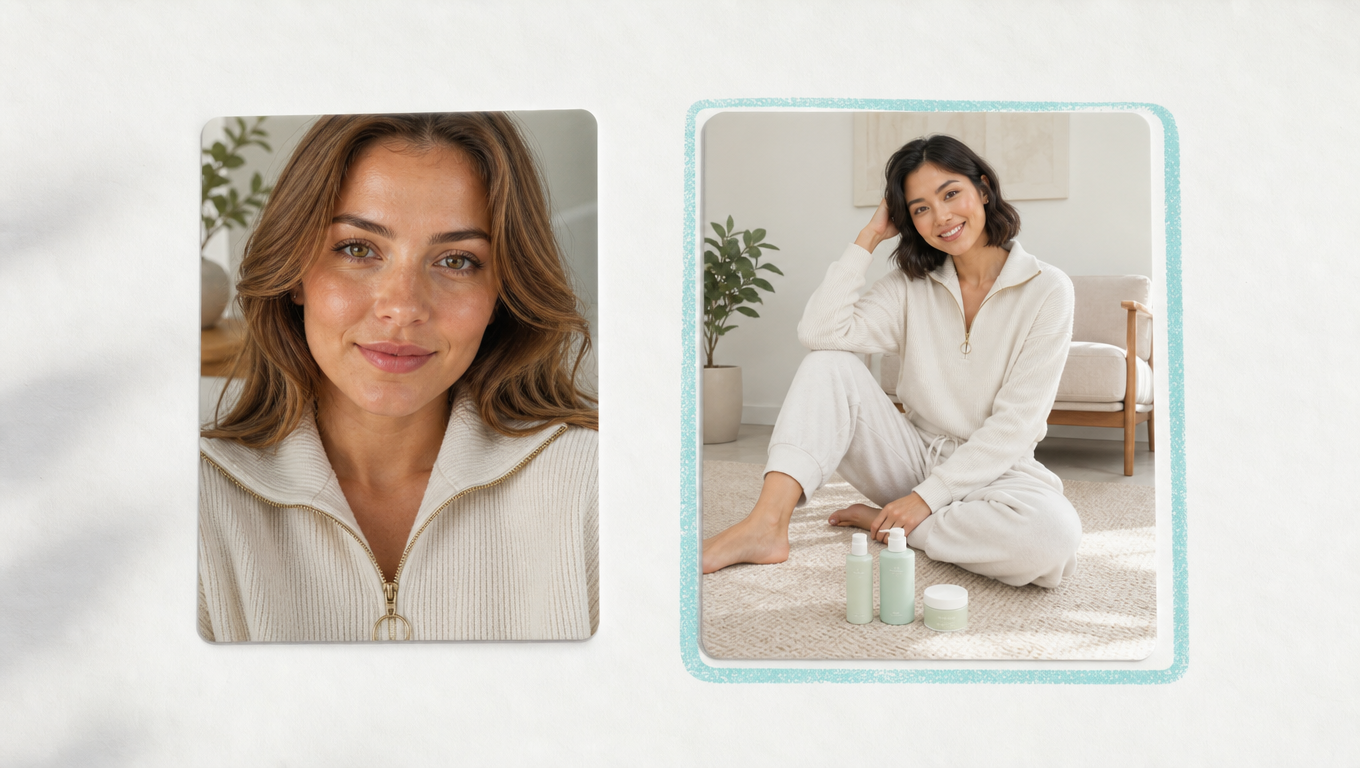
How to Swap a Character in an Image Online
You can run this workflow in a browser with an AI image character swap tool. The process is usually three steps.
Step 1: Upload the target image and character reference
- Target image: the photo that already has the pose, product, background, or layout you want to keep
- Character reference: a clear image of the person or character you want to place into that scene
On Topview, open Image Character Swap, upload both images, then continue to generation.
Step 2: Generate the character swap
AI aligns the new subject with the original:
- Pose and body placement
- Scale and proportions
- Lighting direction and color tone
- Scene context and composition
You do not need Photoshop layers, manual cutouts, or complex masking for the core swap.
Step 3: Review and download
Check:
- Face and hair edges
- Hands and arm alignment
- Clothing/product boundaries
- Shadow direction
- Background continuity
If the result is close but not clean, adjust inputs (clearer reference, closer pose match, higher resolution) and generate again. Then download the finished image for ads, ecommerce pages, social drafts, or creative review.
What the AI Tries to Preserve
A strong character swap should keep:
- Original background and location
- Pose, framing, and camera angle
- Product and outfit structure where relevant
- Lighting and overall color tone
That preservation is why teams use character swap to reuse existing assets instead of restarting production.
Input Tips for Cleaner Results
1) Use a clear target scene
Choose a target image where the main person, product, background, and pose are easy to read. Busy blur, extreme crop, or heavy occlusion makes replacement harder.
2) Use a strong character reference
Pick a reference where the new person or character is visible, well-lit, and not blocked by hair, hands, props, or deep shadows.
3) Match pose direction when possible
If both images share a similar body angle or face direction, the swap usually looks more natural.
4) Keep product details visible
For ecommerce, start with photos where the product, outfit, or key selling detail is not hidden by motion blur or extreme shadows.
5) Prefer high-resolution sources
Sharper inputs give the model more usable identity and texture information.
Example Workflows
Ecommerce model variation
Keep the same product scene and swap in different model identities, body types, or regional looks to test catalog and PDP creatives.
Paid social ad testing
Keep one winning composition and change only the person to compare audience fit, expression style, or creator energy.
Market localization
Adapt one campaign image for another country or customer segment by replacing the main person while keeping brand layout intact.
Lookbook and character consistency
Place the same character into different scenes or outfit contexts to draft a consistent visual set before final production.
Common Mistakes to Avoid
- Using a tiny, compressed social download as the only source
- Choosing a reference face that is half-hidden or poorly lit
- Expecting face-swap behavior when you actually need a full-person change
- Ignoring pose mismatch between target and reference
- Skipping rights checks on people, brand assets, and commercial usage
Rights and Commercial Use
Even when the tool is easy to use, you still need permission for:
- The target image
- The character reference
- Any recognizable person featured
- Final commercial distribution of the output
AI speed does not replace image rights.
FAQ
Can I replace a person in a photo online?
Yes. Upload a target image and a character reference, generate the swap, then download the result.
Do I need Photoshop?
No. AI handles alignment, blending, and lighting matching for the core edit.
Does the background change?
The goal is to keep the original scene, background, composition, and lighting as stable as possible while replacing the main person or character.
Can I use illustrated or stylized characters?
You can try stylized references when both images are clear. Results vary with style gap, pose complexity, and scene detail.
Is character swap the same as text-to-image?
No. Character swap starts from an existing target image plus a reference image. Text-to-image creates a new scene from a prompt.
What images work well for AI model swap in ecommerce?
Clear product visibility, readable pose, clean lighting, and a strong model reference usually produce more usable catalog and ad variants.
Final Checklist
- Target image has a clear person and readable scene
- Reference image shows the new subject clearly
- Pose direction is reasonably similar
- Product or outfit details remain visible when needed
- Output passes a zoom check on edges, hands, and lighting
- You have rights to use all source images and the final asset
Bottom Line
If your goal is to replace a person in a photo without rebuilding the whole design, use AI character swap — not a face-only edit and not a full reshoot.
Upload the scene you want to keep, add the character you want to insert, generate, then review lighting and edges before you ship the creative.